
WooCommerce estimated delivery date plugin: what to check before choosing one
A delivery date shown at the wrong point in the buying journey can create more questions than it answers. If it overlooks preparation time, a carrier’s working calendar or the destination’s no-delivery days, a customer may plan around an estimate your team cannot explain. Choosing a woocommerce estimated delivery date plugin is therefore about more than displaying a date. You need to know whether its rules reflect the journey from order processing to the customer’s door.
This guide gives you a practical way to assess a plugin before committing to its workflow. It covers the decisions that are easy to miss in a feature list: which calendars it distinguishes, how it handles exceptions, where estimates appear and whether your team can understand a result later. An estimate is not a guarantee of arrival, a live tracking update or a booked delivery slot.
WooCommerce estimated delivery date plugin: start with the fulfilment journey
Before comparing settings, describe what happens between checkout and delivery in your own operation. An order might wait for the next processing day, take extra time because an item is made to order, then enter a carrier’s transit period. The destination may also have days when deliveries are unavailable. An estimate is useful only if the rules you configure reflect the stages that matter to your store.
These calendars are related, but they are not interchangeable. Your team might prepare orders Monday to Friday, a carrier may use a different operating schedule, and a customer’s destination may have separate no-delivery days. A single generic “working days” setting can hide these differences and make a displayed date difficult to explain.
- Store preparation calendar: the days your team processes orders before dispatch.
- Carrier calendar: the days used to count transit after an order is ready to leave.
- Customer no-delivery calendar: days on which the destination should not be offered as an estimated delivery day.
Check whether the plugin lets you configure these calendars separately and represent relevant closures or holidays. Then compare the available settings with your real warehouse and carrier arrangements. A calendar that reflects your team’s schedule but not the carrier’s may still generate a date that seems inexplicable to the person packing the order.
WooCommerce shipping zones help determine which shipping methods are available to a customer based on their location. The official WooCommerce guide to setting up shipping zones is useful background when you are checking whether destination-specific estimate rules correspond to the destinations and shipping options customers can actually select.
Check cut-offs, preparation time and delays separately
An order placed late in the day is a simple test that can expose a weak estimate. If your shop has a dispatch cut-off, an order received after it may not enter preparation until the next eligible working day. Find out whether the plugin can apply a cut-off in the store’s local time and whether the preparation period is clear enough for your team to verify.
Do not assume “delivery in three days” means the same thing in every plugin. It might count preparation and transit together, or it might count only carrier days after dispatch. Ask how the calculation treats orders placed before and after a cut-off, on weekends and during closures. Compare the explanation with the fulfilment workflow your team actually follows.
Check whether ordinary preparation time, carrier transit and a backorder delay can be considered separately. A backordered product may need more time before it is ready to dispatch. That is a different reason for a later estimate than a longer carrier transit period. If the system gives your team no way to distinguish those causes, it may be harder to set expectations consistently.
When reviewing the settings, look for the values that affect the calculation rather than relying on a broad label such as “delivery time”. Delivery Dates for WooCommerce offers configurable preparation days, carrier days, backorder delay and a global cut-off, alongside store and carrier working calendars. Use the interface evidence at the point below to support a specific product-interface claim.
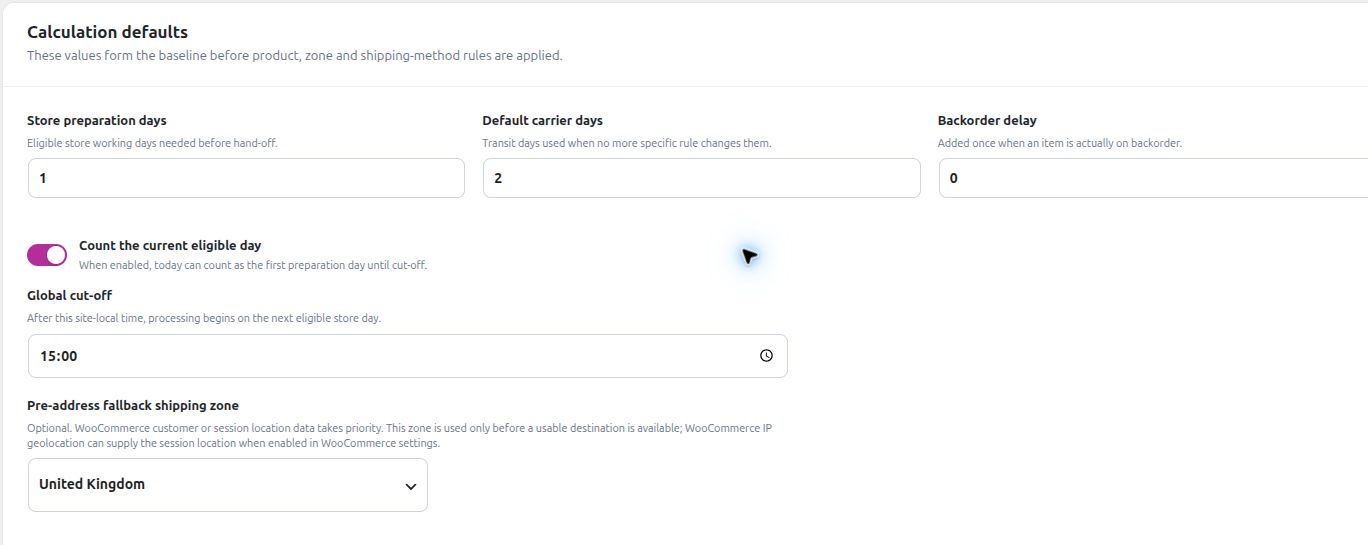
For more on configuring the workflow, Regal IT’s Delivery Dates setup guide for WooCommerce covers the setup process. Treat it as implementation reading, not as a substitute for deciding whether the plugin’s model suits your operation.
Ask how rules handle products, destinations and shipping methods
A single store-wide rule may be enough for a small catalogue where products share a fulfilment process and ship to the same destinations. It is less likely to cover a store where some products take longer to prepare, selected categories are made to order or destinations use different carrier services.
Before choosing a plugin, write down the exceptions that matter in your shop. Keep them concrete: a product needing extra preparation, a backordered item, a shipping class handled differently, or a destination where a particular shipping option is unavailable. Then check whether rules can target the relevant products, categories, tags, shipping classes, shipping zones or shipping methods. The conditions vary between plugins, so verify them in current product documentation rather than assuming they are included.
Also find out what happens when more than one rule could apply. Does the documentation explain which rule takes priority, or how delays combine? Can you test a representative product and destination before changing the live estimate? A large collection of conditions is not automatically useful if administrators cannot predict which one will take effect.
Availability dates and stock conditions may matter too. A product that is not ready to pack might need a different estimate from an item in stock. Ask whether the plugin supports the stock states your catalogue uses, including backorders, and whether customers can still recognise the displayed date as an estimate when availability is uncertain.
Turn exceptions into test cases
For every exception, record the product or condition, the relevant destination and shipping method, and why the estimate should change. This gives you a small, practical set of cases to use when comparing plugins. It also helps your team distinguish a real configuration requirement from a feature that sounds appealing but does not match how the store fulfils orders.
Test the estimate across the customer journey
A date can be clear on the product page and confusing if it disappears from the cart or changes without explanation at checkout. Review the whole journey: product page, cart, checkout, order confirmation and any customer emails that display delivery information. Check which touchpoints matter for your theme and checkout setup, then verify what the plugin supports in the WooCommerce experience your store uses.
If your store uses, or may move to, block-based experiences, include those in the evaluation as well as any classic experience you rely on. A general statement that a plugin “works with WooCommerce” does not tell you whether estimates appear in the product, cart and checkout contexts where customers need them. Confirm the specific experience instead of assuming compatibility from a broad claim.
The aim is not to display a date everywhere regardless of relevance. It is to avoid a mismatch between what the shopper sees before paying and what the store communicates afterwards. Try a straightforward order first, then follow its estimate through each touchpoint that your store uses. Note whether the date remains clear and whether the language makes its estimated nature apparent.
Next, test a cart containing products with different fulfilment requirements. Ask what the customer sees before checkout and whether the order-level estimate remains understandable. Mixed carts are useful evaluation cases because they reveal whether a plugin has a coherent way to calculate or present an estimate when items do not share the same preparation time.
Be clear about the customer’s underlying need. An estimated date communicates a likely timeframe based on configured rules. It is not the same as letting a customer choose a delivery slot, booking a carrier service or tracking a parcel in real time. If customers need one of those separate services, confirm that the tool you are assessing is designed for that job rather than expecting an estimate plugin to solve it.
Find out what your team can review on an existing order
Delivery rules can change as your store updates its processes, calendars or cut-offs. That creates a practical support question: if a customer asks about an order weeks later, can your team review the estimate associated with that order, or does the system show a newly calculated date based on today’s rules?
Historical and current estimates serve different purposes. If an old order is recalculated after settings change, the result might not reflect what the customer saw when placing the order. For customer-service and fulfilment teams, an estimate saved with the order can provide a useful reference when discussing what was communicated at the time.
Delivery Dates for WooCommerce saves estimate snapshots on orders. That historical information is distinct from the estimate calculated for a new cart, and later changes to settings should not be confused with what was originally saved. During evaluation, ask how the plugin represents the estimate on an order and what administrators can inspect when a customer query needs attention. Do not assume that a saved order estimate is also stored separately against every order item unless the product documentation confirms it.
You can also ask whether administrators can notify customers when an estimate changes. Treat this as a question to verify for the plugin and workflow you are considering, not as a substitute for carrier tracking. An updated estimate still does not confirm a parcel’s location or guarantee its arrival date.
Prefer an estimate you can investigate
When a date looks wrong, your team needs a way to investigate it without guessing. The date alone may not reveal whether the cause was preparation time, the destination, a cut-off, a holiday or a shipping-method rule. Ask whether the plugin provides a diagnostic view that lets an administrator inspect representative inputs and understand how a result was reached.
A useful test should let you choose a representative product, destination, shipping method and date, then review information about the calculation. That gives the team a way to check whether the rules behave as expected before a customer reports an unexpected estimate. Diagnostics are an administrative aid; they do not provide live parcel tracking or make an uncertain carrier arrival certain.
Delivery Dates for WooCommerce includes diagnostic traces for representative products, destinations and dates. Its delivery-estimate diagnostics guide explains the diagnostic workflow. When comparing tools, check which inputs can be tested and whether the output gives your team enough context to identify a calendar or rule that needs attention.
Consider this hypothetical test: a shopper orders after the store’s Friday cut-off. One product is in stock, another is on backorder, and the destination has a no-delivery day the following week. The useful questions are not only “What date appears?” but also “Which preparation delay applies, when does carrier transit begin, and how does the destination calendar affect the estimate?” A diagnostic trace that makes the relevant stages visible gives an administrator something specific to check.
Build a small evaluation checklist before installing
A short, representative test plan is more useful than relying on a polished feature description. Choose cases that reflect your actual catalogue and destinations, including one straightforward order and a few genuine exceptions. Write down the expected outcome and the assumptions behind it, so colleagues can discuss a disagreement without relying on memory.
- Choose a standard product. Check the estimate for a normal in-stock order using your usual shipping method.
- Test the cut-off. Compare an order placed before the cut-off with one placed after it, using the store’s local time.
- Check calendars and closures. Include a weekend, a relevant store closure or holiday, and any carrier working-day difference that matters to your operation.
- Test a real exception. Use a backordered or slower-to-prepare product, or a destination and method with distinct rules.
- Review a mixed cart. Confirm how the estimate is presented when products have different preparation needs.
- Follow the order record. Check what estimate is retained and what an administrator can review if settings change later.
One successful test does not prove that every rule is correct. Test the combinations customers can actually select and repeat the relevant checks after substantial changes to calendars or shipping configuration. If a result surprises the team, record the inputs and investigate the calculation before adding another broad rule.
Keep the test cases manageable. A small set that reflects your real shipping options is easier to repeat than a long collection of hypothetical combinations. If two scenarios produce different results, compare their inputs in order: product availability, preparation time, order time, destination, shipping method and relevant calendar days. Changing one condition at a time can make the source of a difference easier to find.
When Delivery Dates for WooCommerce may fit
A plugin is a better fit when its model matches the question your store needs to answer. Delivery Dates for WooCommerce is designed for configurable delivery estimates based on store and carrier working calendars, rules and delays. Its rule options include global, shipping-class, shipping-zone, shipping-method and targeted product, category or tag rules. The product page also describes support across classic and block-based product, cart and checkout experiences, order records and compatible customer emails.
This may suit a store that ships physical products and needs estimates to reflect processing time, destinations or fulfilment conditions. It is less relevant if the actual requirement is to book a customer-selected delivery slot, obtain a carrier-rate quotation, manage fulfilment automatically or show live tracking. Those are different jobs. Check for a solution specifically intended for the one you need rather than stretching the meaning of “delivery date”.
Explore Delivery Dates for WooCommerce to review its current product information. If you want to evaluate it in your own store, the product profile provides a verified seven-day free trial at Download the verified seven-day free trial. The trial starts an account-gated download process; it is not a permanent public ZIP file.
For a broader view of the available range, see Regal IT’s WooCommerce plugins. Assess any option against your own test cases and current store setup rather than assuming a general feature list confirms a particular compatibility or outcome.
Choose a plugin your team can explain
The most useful evaluation is a practical one. Separate preparation, carrier transit and customer no-delivery days; test cut-offs and closures; check how exceptions are targeted; follow the estimate through the customer journey; and find out what your team can inspect later. These checks reveal whether a plugin reflects your operation or simply puts a date on the screen.
Keep customer-facing language honest. A calculated date can help people make a decision, but it remains an estimate based on configured rules, not a promise that a parcel will arrive at an exact time. When your rules are understandable and the estimate saved with an order can be reviewed, your team has a clearer basis for setting expectations and answering questions.