
How to Customise the WordPress Admin Menu Without Changing Permissions
To customize wordpress admin menu navigation well, start with the work people need to finish, not the list of links that happens to be visible today. A crowded dashboard slows down a content editor, distracts a shop manager and makes handovers harder. Yet removing a link is not the same as changing a person’s WordPress permission. The useful goal is a clearer route to ordinary work while keeping access decisions explicit and recoverable.
This guide is for administrators and agencies designing a calmer dashboard for several roles. It explains how to map tasks, decide when a change is cosmetic, test the result with real accounts and avoid creating a navigation layout that only one person understands.
Decide what the menu should make easier
An administration menu is an interface for recurring work. Before changing it, list the tasks that take place every week. A marketing editor may create posts, upload media and review comments. A store manager may need orders, products and reports. A developer or site owner may need settings that should not be part of either daily route. This small inventory is more useful than asking which items look untidy.
For each audience, identify the three to six screens used most often, items that create avoidable confusion and pages that need a separate permissions decision. Give the proposed layout a plain-language purpose, such as “make order handling easier for the operations team”. It provides a testable standard later: can that person still complete the work without hunting through the dashboard?
A practical decision rule
Use navigation changes to improve focus. Use WordPress roles and capabilities, plus a reviewed access rule where supported, to decide who may open a page. Do not ask a menu layout to do both jobs.
That distinction also makes stakeholder conversations clearer. “Can we remove Settings from the editor view?” may mean “the editor should not be distracted by Settings”, or it may mean “the editor must never administer Settings”. Those are different requirements, with different owners and tests.
Customize WordPress admin menu changes without confusing visibility and access
Cosmetic hiding changes what a person sees in the navigation. It can be the right choice where the underlying access is already appropriate, for example when an administrator wants a cleaner view for a team that rarely needs a plugin screen. It does not remove a WordPress capability or guarantee that a person cannot use a known direct URL.
Regal Menu Editor labels this deliberately as Hide Only. The menu link disappears, but direct access remains unchanged where WordPress otherwise permits it. That is valuable because it avoids presenting a usability choice as security hardening.
There are occasions when the route itself needs a stricter treatment. Regal Menu Editor provides Hide and Restrict Access for exact, registered administration-menu routes, returning a 403 response for the matched administration page. It is not a general-purpose restriction system for arbitrary screens: background, AJAX, REST, upload, update and settings-save endpoints are excluded. Keep normal WordPress roles, plugin capability checks and operational review as the foundation for permissions.
| Question | Hide Only | Restrict supported route |
|---|---|---|
| What changes? | The visible navigation link. | The matching registered admin-page route and its link. |
| Best use | Reducing distraction. | A reviewed route-level boundary. |
| What still needs review? | WordPress capabilities and direct access. | Roles, recovery and affected workflows. |
The WordPress admin_menu hook reference is a useful reminder that core and plugins register menu pages during the normal administration lifecycle. A durable editor works with those registered items rather than encouraging file edits that a future update could overwrite.
Build one audience view at a time
Role-level rules are easier to review when several people have the same job. Individual-user rules are useful for a short handover, a specialist administrator or an exception that has a clear owner. They become a maintenance risk when each new request creates another unexplained variation. Record why an individual exception exists and when it should be reconsidered.
A sensible first rollout is one high-frequency audience and one simple outcome. For example, an agency might arrange Posts, Media and approved campaign tools prominently for a marketing team while retaining technical configuration for the owner. The agency can hide low-value links for focus, then separately verify that the team has only the capabilities it should have.
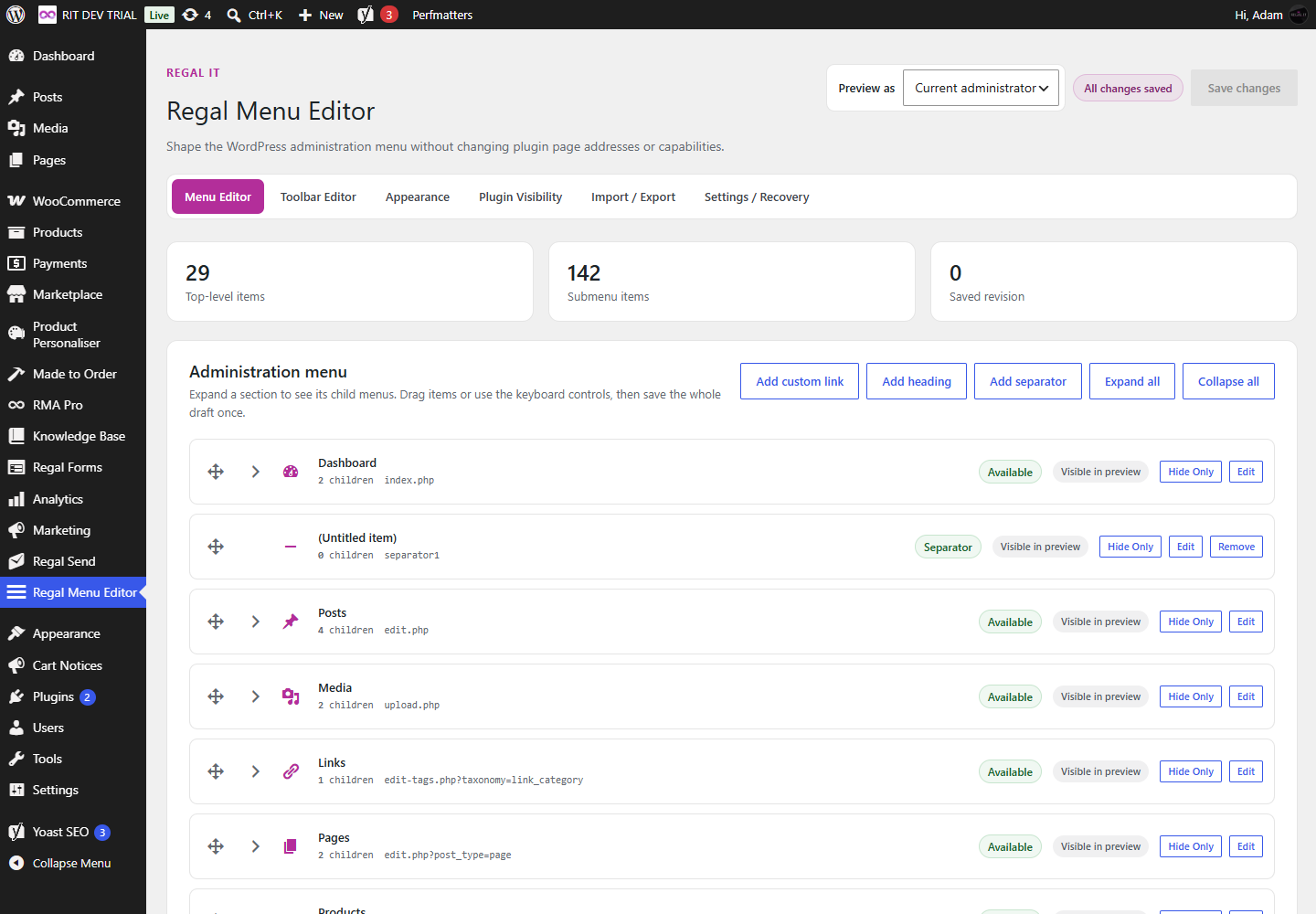
Regal Menu Editor supplies a workspace for administration-menu and Toolbar items, including renaming, moving, hiding and retargeting links. It also supports custom items and appearance controls. Treat these as tools for an agreed design, not reasons to redesign every screen. The best first version is usually the smallest version that removes a genuine daily obstacle.
Run a workflow test before saving live changes
Previewing a layout is useful, but the acceptance test is whether the intended person can complete their work. Test in a safe local or staging environment with representative plugins and accounts wherever possible. An empty WordPress installation does not reveal the menu structure created by a store, form, SEO or editorial plugin.
- Capture the baseline. Export the existing configuration or record the important menu and Toolbar paths before altering them.
- Apply one planned change. Rename, move or hide only items connected to the selected audience outcome.
- Sign in as that audience. Complete a normal task from start to finish, such as publishing a post or processing an order.
- Test the boundary. Where hiding and route restriction matter, check both the visible menu and a direct URL with an appropriate non-owner test account.
- Check an unaffected administrator. Confirm that a responsible owner can still reach critical settings and the recovery instructions.
Do not only test the happy path. Ask what happens when a plugin adds a new menu item, when a staff member changes role or when an emergency requires a setting normally hidden from a daily view. A menu is part of an operating process, so its test plan should include the moments when that process is under pressure.
Use a change record that answers future questions
Menu changes often look obvious to the person who made them and puzzling to the next administrator. Keep a short record with the audience, task, visible changes, any restriction decision, test account and recovery location. It need not be a lengthy technical document. A few clear notes prevent a later team member from treating a deliberate shortcut as an accidental configuration fault.
For example, record that the store-manager view brings Orders and Products forward because those are the daily operational tasks, while Settings is hidden only to reduce distraction. If a supported route is restricted, record its exact purpose, the account used to test the restriction and the administrator who can reverse it. This separates intentional design from incidental personal preference.
Review that record after major plugin updates, role changes and staff handovers. New extensions can register their own administration pages, and a menu that was coherent six months ago can gradually become crowded again. A scheduled light review is less disruptive than a large clean-up prompted by user frustration.
Keep a recovery path that is independent of the layout
The most important menu customisation is the one you can undo safely. Before a significant change, save an export and record who can restore it. Regal Menu Editor can export its current menu, Toolbar, appearance and plugin-list settings as a JSON backup. Imports are validated and previewed before replacement, which makes it easier to examine a configuration before applying it to a live site.
Recovery should not depend on remembering which link vanished. Regal Menu Editor includes an emergency recovery mode that bypasses its customisations so an administrator with the relevant server configuration access can inspect or reset the configuration. It also provides a reset for its own customisations without changing unrelated WordPress data. Those controls complement, rather than replace, a normal backup and change-management process.
Save a named export, identify the recovery owner and agree the test account.
Review exceptions after staff, role or plugin changes instead of letting them become invisible.
Use Toolbar and plugin-list changes with the same discipline
The same reasoning applies beyond the left-hand menu. Toolbar links affect the shortcuts people see in administration and, in some cases, on the front end. Plugin-list visibility can reduce clutter for selected audiences, but hiding a row does not deactivate a plugin or remove plugin-management capabilities. Document what the view is intended to simplify and retain an administrator who can inspect the full system when needed.
Custom links deserve an extra check. A shortcut should have an understandable label, a trusted destination and a clear reason to exist. Retargeting a registered link or adding a custom item may save time, but it can also confuse a team if it silently changes where they expect an action to go. Review these changes alongside the workflow that prompted them.
Make the dashboard easier to operate, not harder to govern
Regal Menu Editor offers a focused workspace for administration-menu and Toolbar changes, audience rules, imports and recovery-aware configuration. Explore the product when you need clearer navigation while keeping WordPress permissions explicit.
Make the dashboard understandable after the original project ends
A successful administration-menu design is not judged by how many items disappear. It is judged by whether the right person can find the right work, whether access remains accurately described and whether a future administrator can understand and reverse the choices. Start with one audience, test a real workflow and retain the export and recovery route before expanding further.
That approach gives a team a dashboard that is calmer without becoming mysterious. It also makes a later permissions review easier: the navigation notes explain what was changed for focus, while the role and route checks explain what access is actually intended. For other operational WordPress tools, browse the wider range of Regal IT products.