
How to Remove Products from a WooCommerce Sale Category When an Offer Ends
Searching for woocommerce remove products from sale category usually means an offer has ended but the shop’s Sale page has not caught up. A customer can still find an item through the promotion navigation, even though its price is no longer reduced. That is not just a cosmetic issue: it creates an avoidable question at checkout and makes the catalogue look less controlled.
The useful fix is not to delete a product or remove every category attached to it. It is to make one clearly defined sale category responsible for showing items that are currently on sale, then remove membership of that managed category when eligibility ends. This guide sets out the decisions, exclusions and tests that make that routine safe.
WooCommerce remove products from sale category: decide what the rule owns
Start by separating an offer page from the rest of the catalogue. A product might belong to Clothing, Accessories, a brand collection and a seasonal range at the same time. Those are merchandising choices. The Sale category is different when it is used as a live list of discounted products.
Write down the category or categories that automation is allowed to manage. The rule may add an eligible product to those destinations and remove it from those same destinations later. It must not remove unrelated categories simply because a price changes. That boundary is the difference between a reliable housekeeping task and an automation that can unexpectedly alter navigation.
For example, a shop can keep a product in its normal collection after a promotion ends while removing it from the Sale page. The product remains purchasable, searchable and correctly classified. Only the temporary sale listing changes.
Use one controlled destination instead of a manual tidy-up list
A manual process often starts with good intentions: someone updates prices, then someone else edits the Sale category. The weak point is the hand-off. A scheduled sale ending at midnight, a variation changing later in the day or a bulk price update can leave the category out of date until a person notices.
Sale Category Sync for WooCommerce is designed for the narrower job of keeping selected category memberships aligned with current sale status. It categorises products; it does not create discounts, calculate sale prices or schedule the commercial offer itself. WooCommerce remains the place where the pricing decision is made.
That distinction helps when agreeing ownership internally. The commercial team decides when an item is on sale. The category-sync rule reflects that result in the promotional destination. If the price is not genuinely on sale, the category rule should not be used to make the page look fuller.
Configure the managed category and exclusions before relying on it
The safe configuration is specific. Choose the sale category that the rule may control, then identify exceptions before the first full synchronisation. The screenshot below is a real local Premium test-site configuration. It uses an anonymous group name, an existing test category and a category exclusion; it contains no production catalogue, customer or order data.
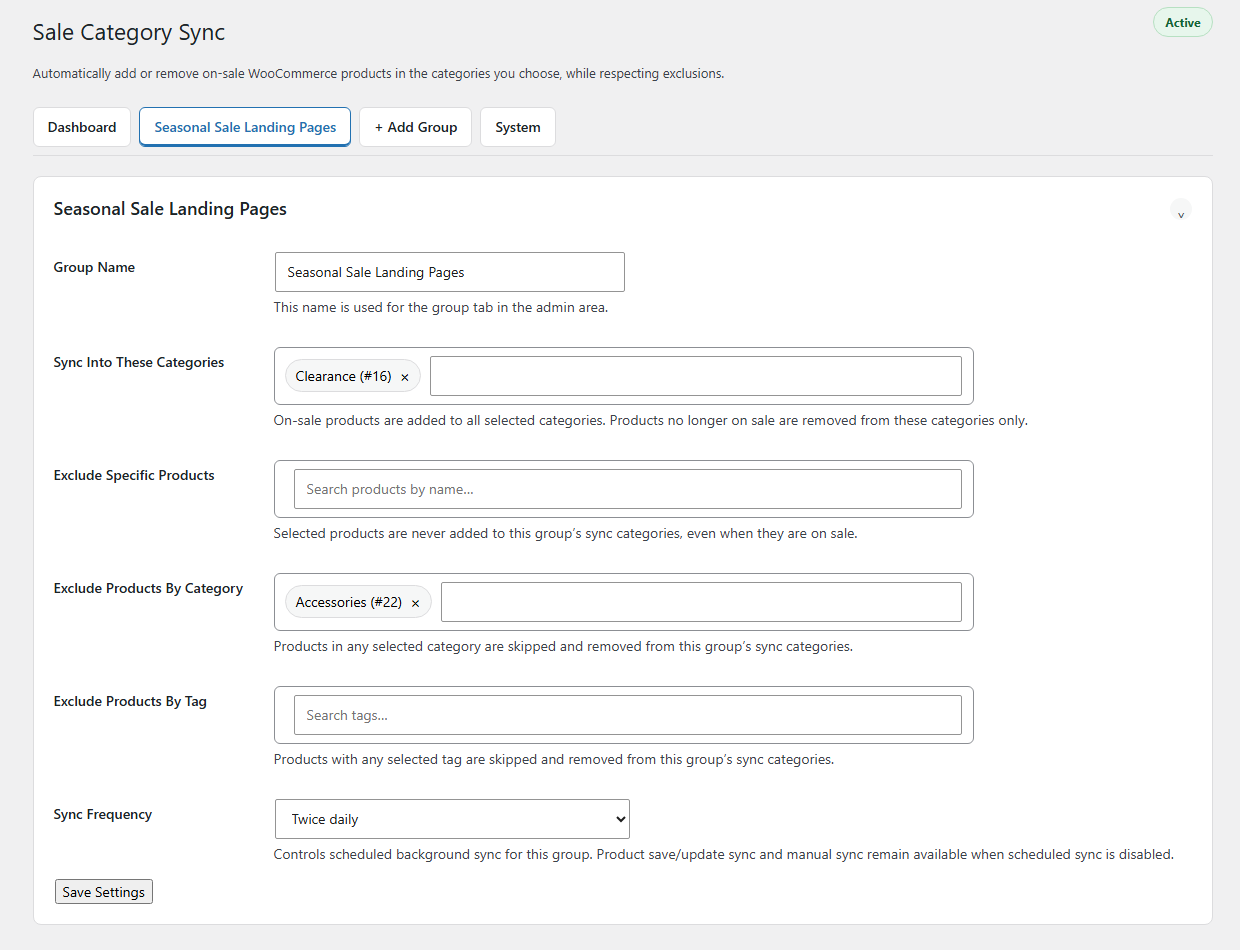
The managed destination answers the question, “where may this rule add or remove products?” An exclusion answers a different question, “which products must this group leave alone even if they are on sale?” Keeping those questions separate makes a later review much easier.
Use a product exclusion for a named item that should never appear in the sale landing page. Use a category exclusion where a whole collection needs different treatment. Use a tag exclusion where the catalogue already has an intentional marker such as clearance-handled-elsewhere. Do not create an exclusion merely to cover an uncertainty; first decide who owns that product’s presentation.
Test the end of an offer with three representative products
Before making the sale page part of a campaign, test the rule with a small, safe set of products. Use an ordinary simple product, an item that has another normal category and an excluded item. Give the first two an active WooCommerce sale price and confirm that they enter the selected sale category. Confirm that the excluded item does not.
Next, remove the sale price or let a short test schedule expire. Run the available manual sync, or wait for the configured background frequency. The first product should leave the managed sale category. The second should also leave that managed category while retaining its normal collection. The excluded product should remain outside the managed destination throughout.
This is more useful than a large first run because it proves the removal behaviour, not just the addition behaviour. Check the product edit screen and the public category page. A correct result is not simply that the Sale page looks shorter; it is that the product’s remaining category assignments still make sense.
Plan for variations without guessing from the parent product
Variable products deserve their own check. A parent product can have several variations, and the customer may only be able to buy one of them at a reduced price. The intended sale-page behaviour needs to match how the store presents those choices.
Test a variable product with a currently eligible variation, then end that variation’s sale. Confirm the parent’s category result after the relevant product or variation update and after a background run. Do not assume that a visual price label tells the whole story. Review the actual product state, the selected sale category and the storefront listing together.
If the store has a complicated combination of bundled items, custom pricing or external feeds, test a representative item before treating the rule as universal. Automation is strongest when its eligibility boundary is understood, not when it is asked to infer every exceptional commercial arrangement.
Choose a schedule that matches the campaign rhythm
Product-save synchronisation is useful when a team changes individual products during the day. A background schedule covers changes that happen through timed sale dates, imports or bulk activity. The right frequency depends on how quickly the Sale page must reflect an ending offer and how the catalogue is maintained.
A fast-moving promotion may justify a short recurring interval. A small catalogue with planned campaigns may be comfortable with a less frequent check plus a manual sync after a bulk edit. The important point is to state the expectation: if an offer ends at noon and the job runs twice daily, the page may not change at the same minute. That is a scheduling decision, not a failed price rule.
Give the people who change prices a simple hand-off: update the WooCommerce sale state, then either rely on the next known run or perform the approved manual sync. Record that choice in the campaign checklist so nobody edits category membership by hand halfway through the process.
Review exclusions when the merchandising plan changes
Exclusions are safeguards, not permanent dust. A product that was intentionally kept off the Sale page last month might be suitable for the next campaign. Conversely, a new collection can need protection before it receives its first sale price.
Review the configured product, category and tag exclusions before a substantial campaign, after a bulk import and whenever a category changes purpose. Check whether each exception still expresses a real merchandising rule. Removing an obsolete exclusion is safer than asking staff to make manual category corrections after every sync.
Also keep names clear. A group called “Seasonal Sale Landing Pages” explains more than “Group 1”. A future administrator should be able to identify the intended destination and the business reason for its exclusions without reconstructing an old campaign from notes.
Use activity as a check, not as a substitute for a test
Activity visibility and a manual force-sync route are helpful when investigating a specific change. They can show that the automation processed a product or applied a category adjustment. They do not replace the initial test set, because an activity entry cannot decide whether the store’s merchandising rule was sensible in the first place.
When something looks wrong, work backwards in a controlled order. First confirm whether the product is currently on sale in WooCommerce. Then confirm that it is not excluded by the relevant group. Check the group’s managed category and its schedule. Finally, run a controlled sync and inspect the product’s actual categories. This avoids the common mistake of repeatedly editing a sale category while the underlying eligibility condition remains unchanged.
Keep the offer page accurate without rewriting the catalogue
The goal is a modest but valuable one: when an offer finishes, the product should stop appearing in the category that represents current offers, while its normal catalogue structure remains intact. A clearly scoped managed category, deliberate exclusions and a repeatable test are what make that possible.
If your store needs selected WooCommerce sale categories to follow live sale status while preserving unrelated category assignments, explore Sale Category Sync for WooCommerce. Set up the rule on a safe test product first, then make it part of the campaign process once the removal path has been proven.